Where widgets and reminders work
Widgets and the reminder are part of the iPhone app, which is coming soon to the App Store. The same account also works in the web app in a browser, without them.
| Feature | Web | iPhone |
|---|---|---|
| Log, History, Goals | Yes | Yes |
| Home-screen widgets | No | Yes |
| Daily weight reminder | No | Yes |
| Apple Health import | No | Yes |
The five widgets
Weights and changes on widgets use your daily value and your display unit, the same numbers as in the app. Changes show an arrow as well as a color, so you can read them without relying on red and green.
| Widget | iPhone sizes | What it shows | You choose |
|---|---|---|---|
| Quick Log | Small | Whether you have logged today. Tap it to open a compact log sheet. | None |
| Weight Metric | Small | Your current weight, with an optional change under it. | Change: None, Previous entry change, 7-day change, 30-day change, or All-time change |
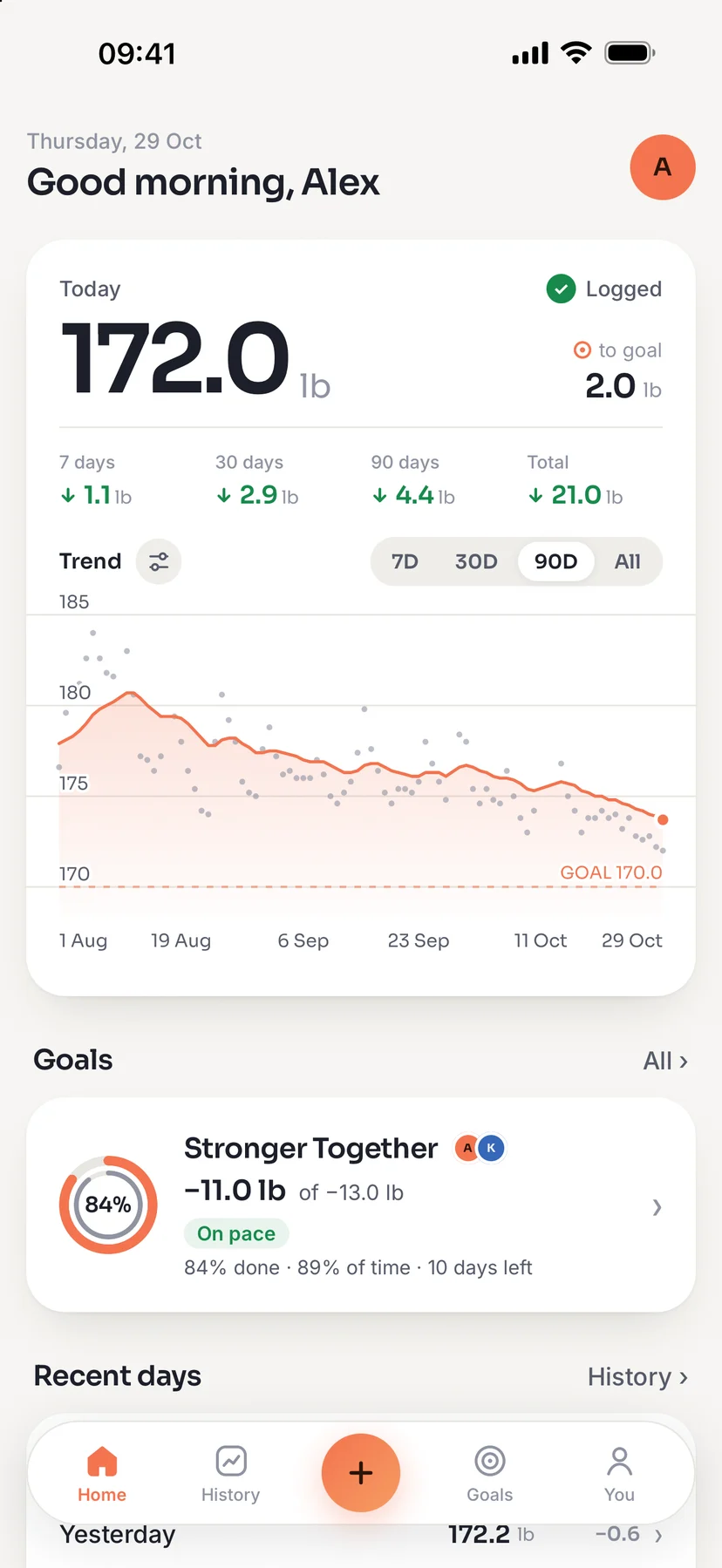
| Weight Trend | Small, medium, large | Your trend line, with each day’s weight as a dot and your goal target as a dashed line when you have one. The large size adds 7-day, 30-day, 90-day, and total changes. | Chart range: 7 days, 30 days, 90 days, or All history |
| Recent Days | Medium, large | Your latest daily weights with log counts and day-to-day changes: three days on medium, six on large. Tap it to open History. | None |
| Goal Progress | Small, medium | Progress on one personal goal or Shared Goal as a ring, with time used inside it and whether you are ahead, on pace, or behind. Shared Goals show members’ progress, never their weights. | Goal: the goal to follow |
Add a widget
Sign in to the app first. Widgets show your data as soon as you place them, and ask you to sign in otherwise. The exact steps depend on your iOS version, but they usually go like this.
- Touch and hold an empty area of the Home Screen until the apps jiggle.
- Tap Edit, then Add Widget. On older iOS versions, tap the + button instead.
- Search for Weight Tracker, pick a widget, swipe to the size you want, and tap Add Widget.
- To choose the change, chart range, or goal, touch and hold the widget and tap Edit Widget.
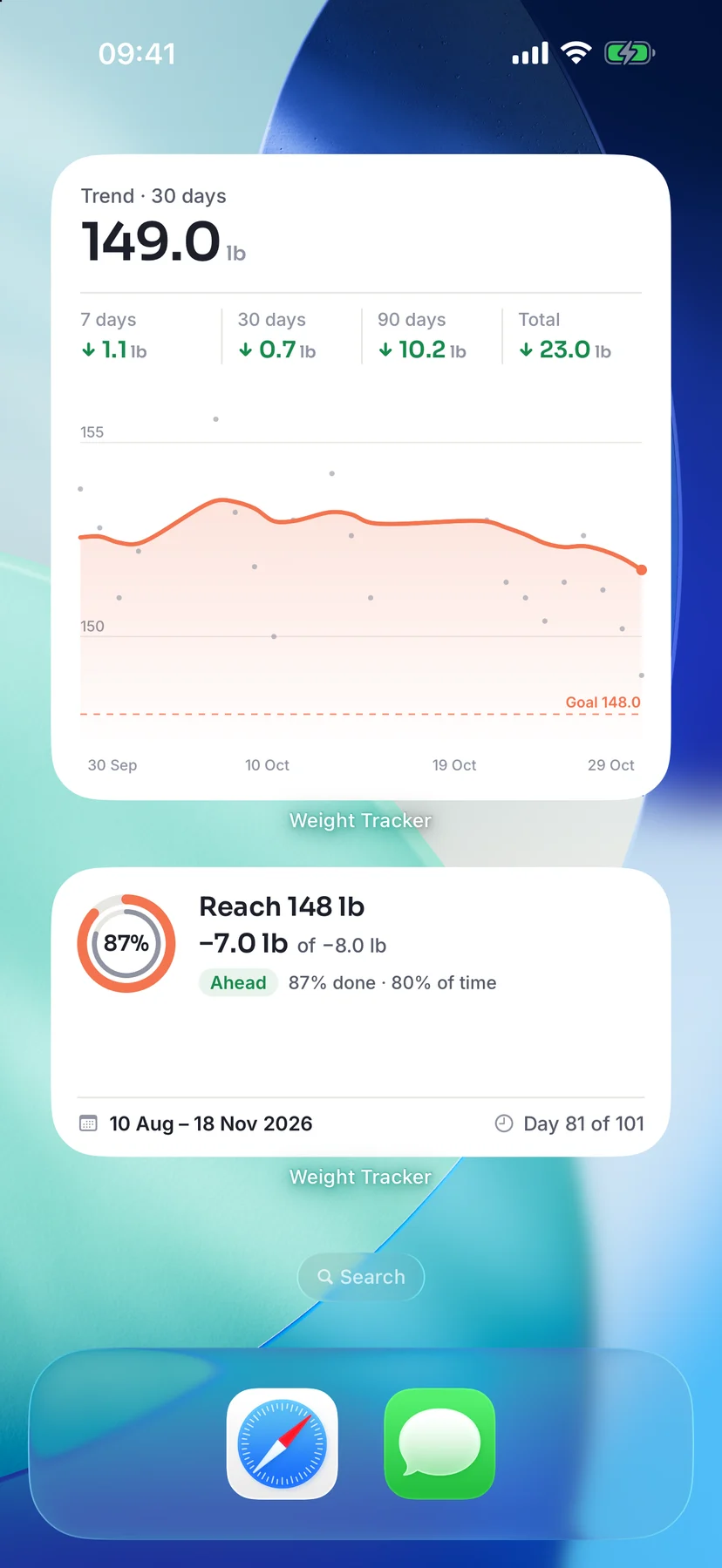
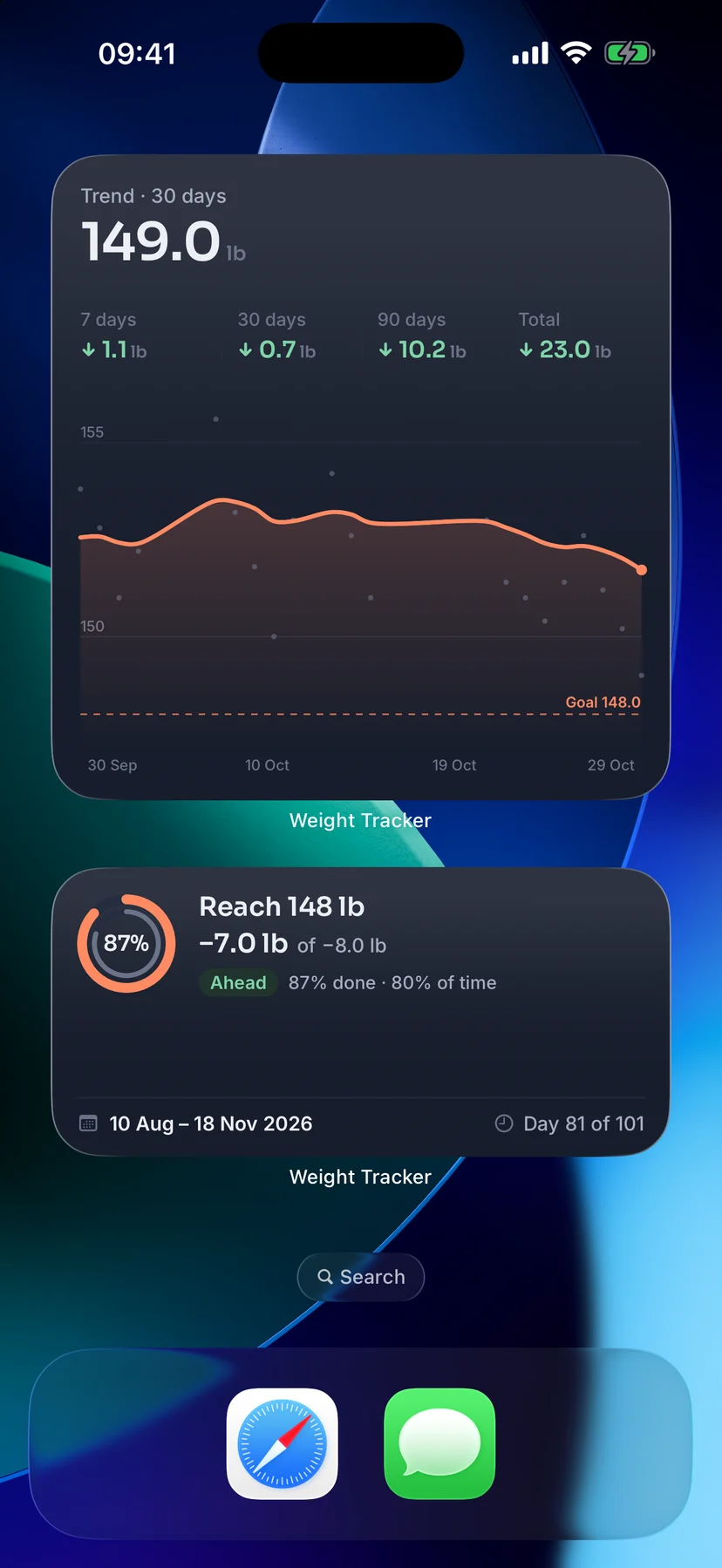
Weight Trend and Goal Progress on the Home Screen, following the phone’s light or dark mode.
Widgets are visible to anyone who sees your screen. Weight Metric, Weight Trend, Recent Days, and Goal Progress show your weight or goal progress. Quick Log only shows whether you have logged today.
Widgets follow You → Appearance → Theme: System matches your phone’s light or dark mode, while Light and Dark always use that look.
Set the daily reminder
- Open the You tab. Under Reminders & data, turn on Weight reminder.
- Allow notifications when your phone asks. If you decline, the switch stays off and a Notifications blocked row appears. Tap Open Settings on that row to open your device settings.
- The reminder starts at 10:00 in your local time. To change it, tap Reminder time, turn the wheel to a new time, and tap Done.
During your first days, you can also turn it on from Remind me to weigh in in the Your first week card on Home. Once it is on, the row reads Daily, unless today already has a weight. If you have logged a weight that day, or one was imported from Apple Health, no reminder is sent. There are no streaks and nothing to catch up on.
The notification says Daily check-in and Ready to log today’s weight?. It never includes your weight or goals, and tapping it opens the log sheet. To stop reminders, turn Weight reminder off.
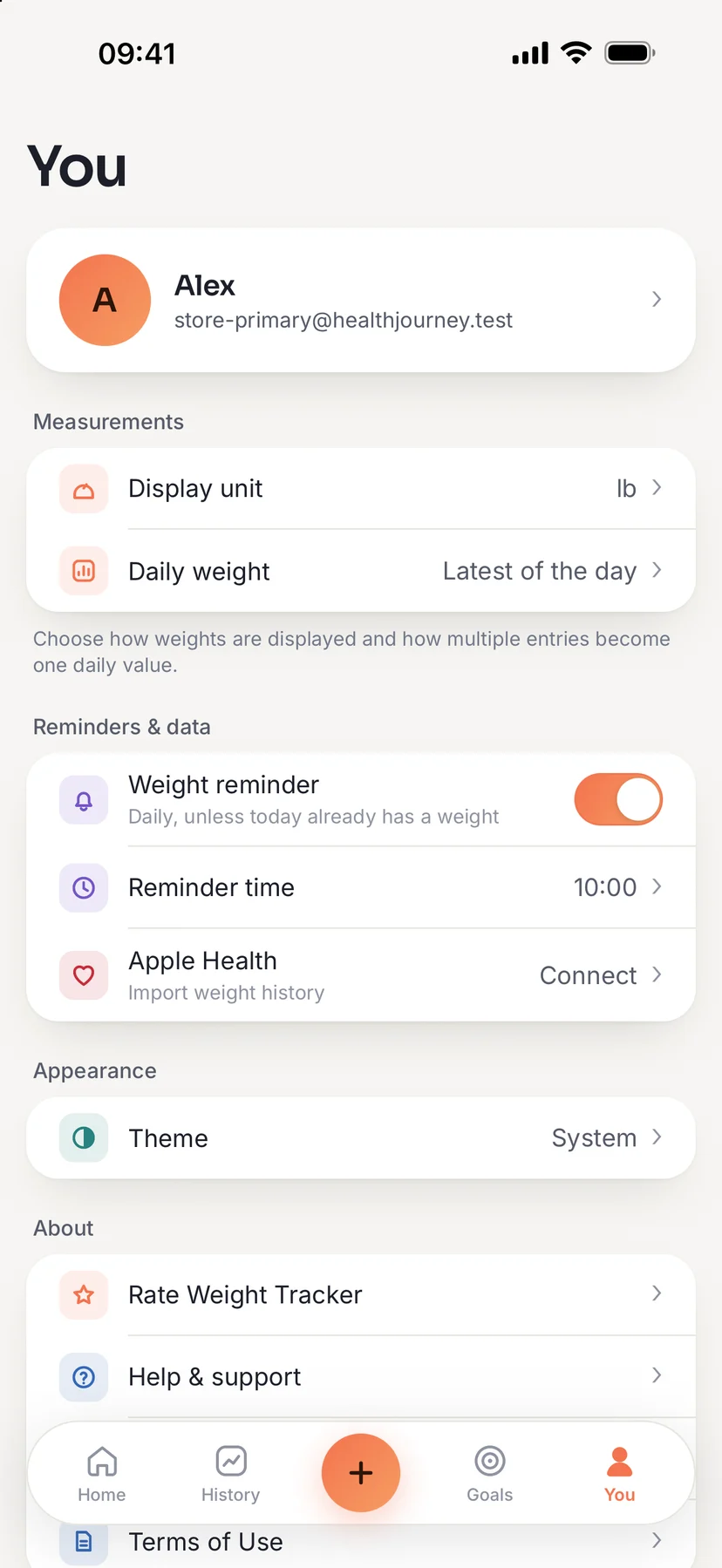
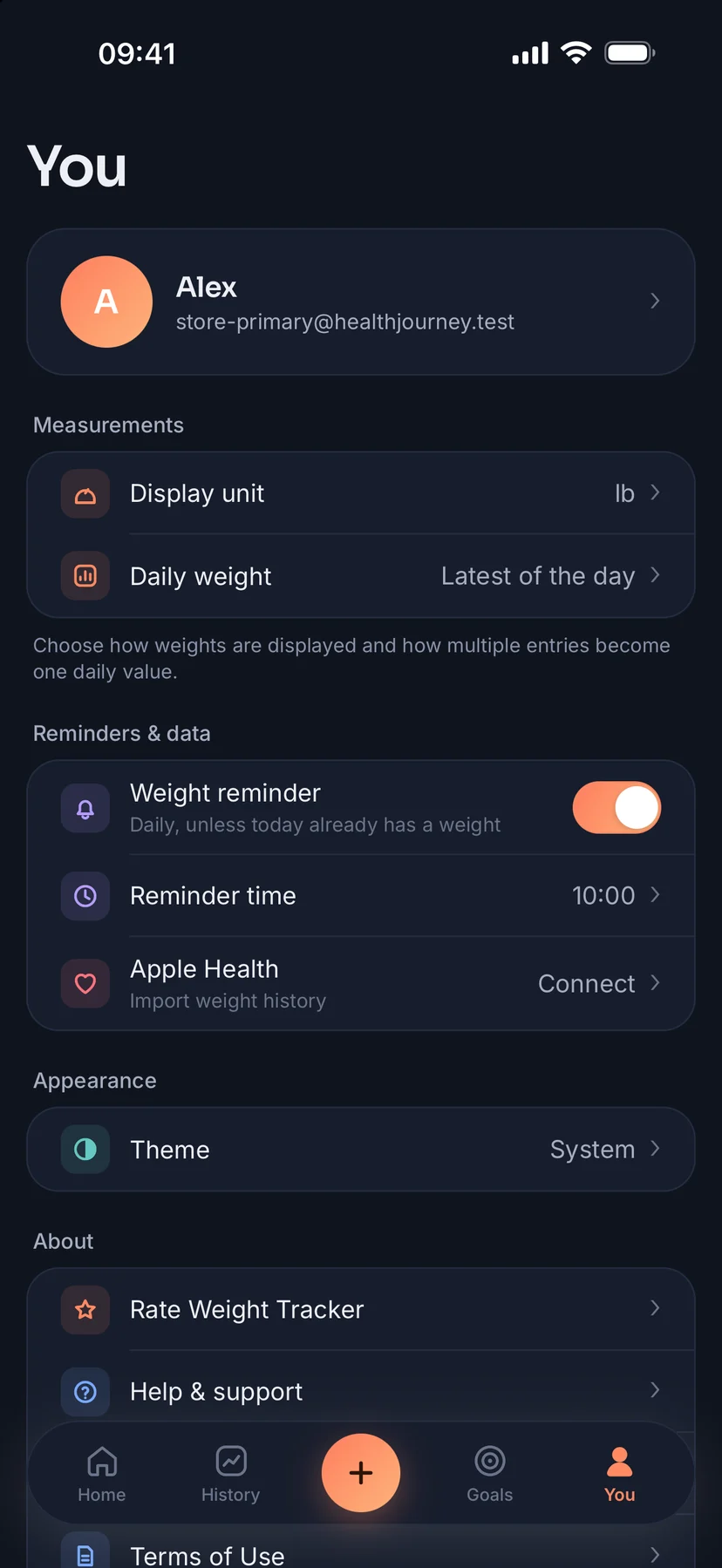
Weight reminder and its time, under Reminders & data in the You tab.
If a reminder or widget is off
| What you see | What to do |
|---|---|
| No reminder today | The reminder is skipped on days that already have a weight, logged or imported. If you have not logged, check that Weight reminder is on and the Reminder time is right. |
| “Notifications blocked” under Reminders & data | Your phone is blocking Weight Tracker’s notifications. Tap Open Settings on that row, allow notifications, then come back. |
| A new reminder time did not apply today | If today’s reminder time had already passed when you changed it, the new time starts tomorrow. |
| No Reminders & data section in You | You are in the web app. Reminders, imports, and widgets need the iPhone app. |
| A widget says Sign in | Open Weight Tracker and sign in. Widgets clear their data when you log out. |
| A widget looks out of date | Open the app once. It refreshes your widgets after you log, and your phone decides how often widgets update in the background. |
| Goal Progress says Goal unavailable | The goal it followed is no longer available to show. Edit the widget and choose another goal. |
| Widget colors do not match the app | Widgets follow You → Appearance → Theme. System matches your phone; Light and Dark always use that look. |
Questions
Do widgets and reminders work in the web app?
No. Home-screen widgets and the daily reminder are part of the iPhone app. The web app covers logging, history, and goals.
Why didn’t I get a reminder today?
The reminder is skipped on any day that already has a weight, whether you logged it or it was imported from Apple Health. If you had not logged, check that notifications are allowed and the reminder time is right.
Can I set more than one reminder a day?
No. There is one daily reminder, and you choose its time. It starts at 10:00, and you can change it or turn it off whenever you like.
Does the notification show my weight?
No. It reads “Daily check-in” and “Ready to log today’s weight?”. It never includes a weight or goal value, and tapping it opens the log sheet.
Can other people see my weight on a widget?
Widgets show your weight and goal progress on your home screen, so anyone who can see your screen can see them. If that matters to you, use Quick Log, which only shows whether you have logged today.
What happens to widgets when I log out?
The app clears your data from its widgets before you are signed out, and they ask you to sign in. They fill in again after you sign back in.